Cricut (Explore 4)
The Cricut Explore 4 is a desktop cutting machine: instead of a printer’s ink head, it drags a small blade across sheet material to cut out any shape you can draw. Use it for vinyl decals and stickers, iron-on transfers for shirts and bags, paper and cardstock models, labels, stencils, and card-stock packaging. It can also draw on your material with a pen instead of cutting it. It works on sheets up to 12 in wide (or 12 in × 24 in on the long mat) and material up to 2.0 mm thick — anything thicker, or anything rigid like plywood, metal, or acrylic, belongs on another machine. If you’re not sure this is the right machine for your project, see Which Machine? or ask a staff member.
WARNING
Keep hands, hair, and loose clothing out of the machine while it’s running. The cutting head moves fast and without warning, and the blade in it is genuinely sharp. Don’t reach in to straighten material mid-job — pause first. Only handle blades when the machine is stopped, and hold the housing, not the blade.
NOTE
No PPE is needed for this machine — no eye protection, no gloves, no hearing protection. It’s one of the lowest-risk machines in the lab. Standard Fab Lab attire, with long hair tied back, is enough.
Before you start
Section titled “Before you start”- No training or checkout is required. Read this page, and ask a staff member if anything here doesn’t match what you see at the machine.
- Check what material the lab has on hand. The Fab Lab keeps some vinyl, cardstock, and mats in stock, but it varies — ask a staff member what’s available before you plan around it. You’re welcome to bring your own material.
- Your material must be no thicker than 2.0 mm and appear on Cricut’s material list for Explore machines (open the Cricut Explore Machines section, then the Cricut Explore 3 & Explore 4 tab). If your material isn’t on that list, ask staff before cutting it — an unsupported material usually just means a ruined cut and a chewed-up mat, but it can break the blade.
- Most material needs a cutting mat. Only Cricut Smart Materials — the ones whose packaging says “Smart” — load into the machine without one.
- Leave at least 12 inches of clear space behind the machine. The mat feeds all the way out the back during a cut and will shove anything in its way.
- You’ll design in Cricut Design Space, which is free. Either use the lab computer, or bring your own laptop — see Setting up Design Space below.
Machine overview
Section titled “Machine overview”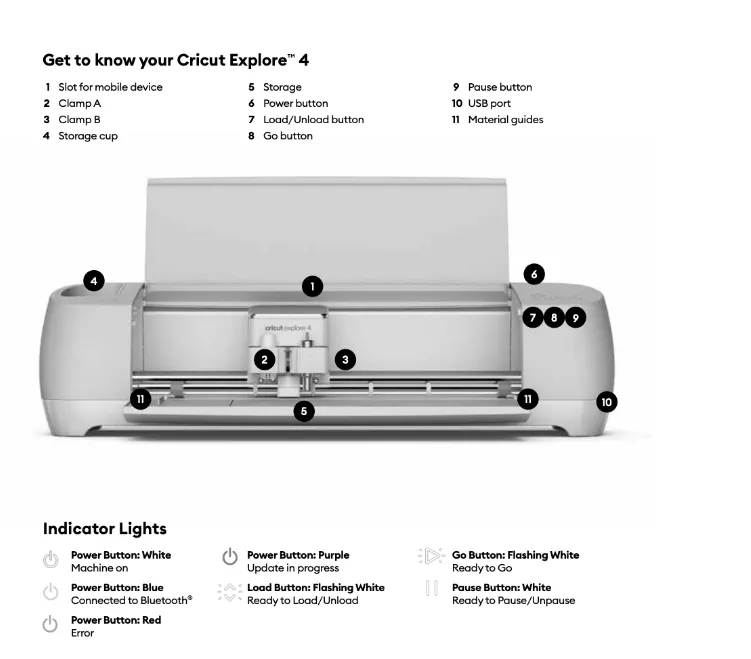
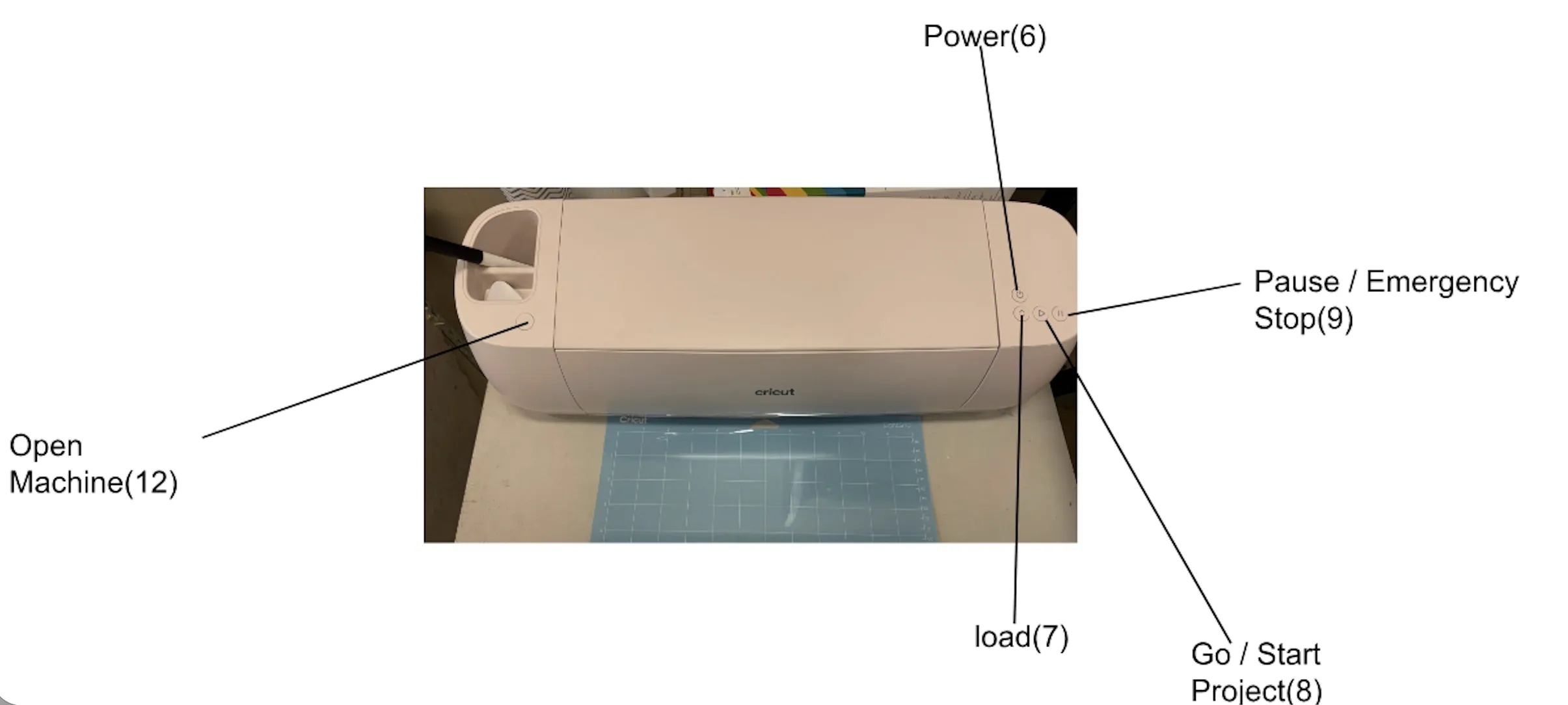
The Open Machine button (12), at the top left of the machine, opens the cover. Cricut’s own diagram above doesn’t number it.
The controls you’ll actually use are the four buttons on the right-hand side — Power (6), Load/Unload (7), Go (8), and Pause (9) — plus the two tool clamps behind the cover:
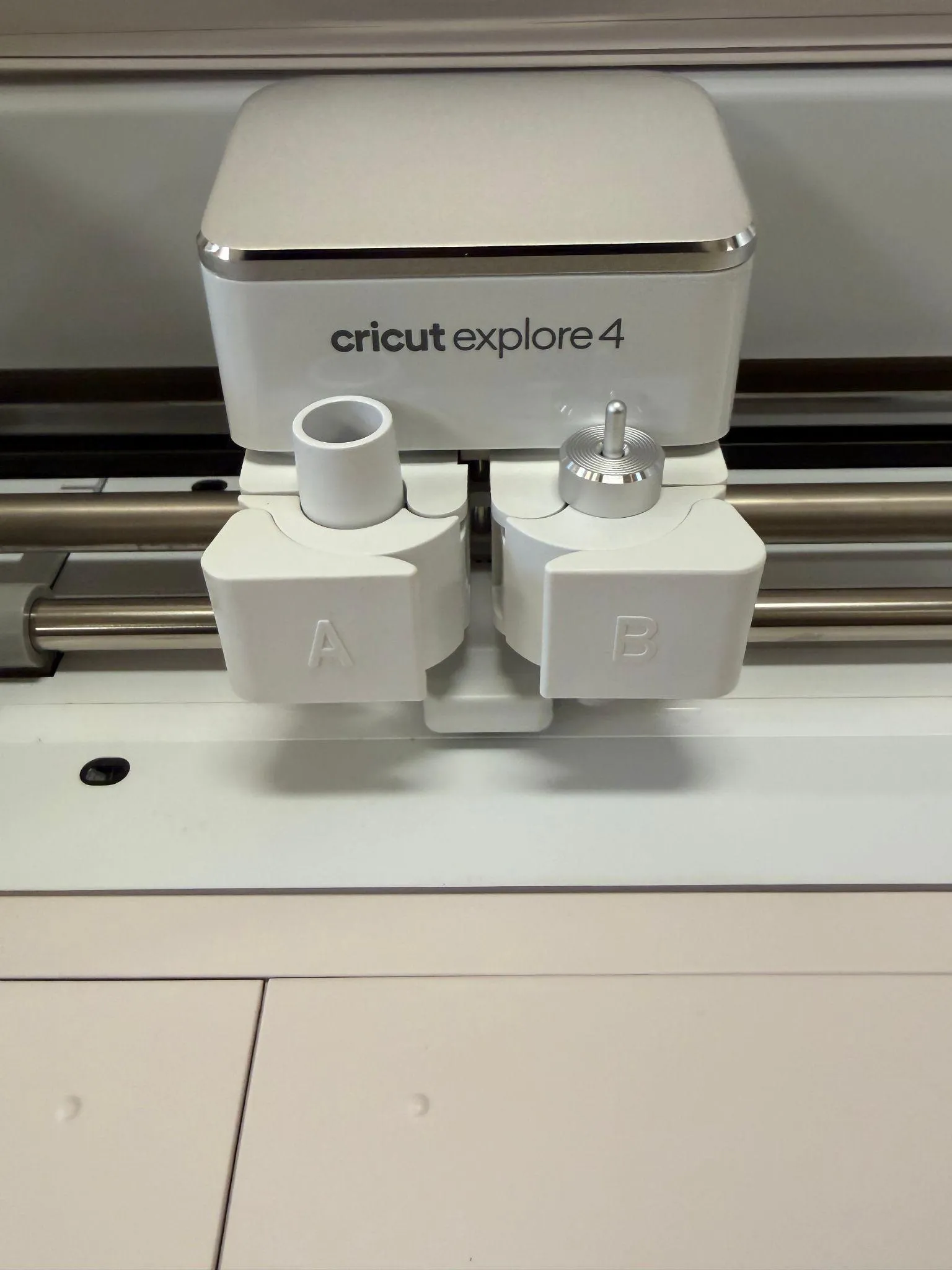
- Clamp A holds accessories that draw or score, like the fine-point pen. It’s empty for a plain cut.
- Clamp B holds the blade housing. The Premium Fine-Point Blade lives here and handles almost everything: vinyl, iron-on, paper, cardstock, and light fabric.
The button lights tell you what the machine is waiting for. The Power button glows white when it’s on, blue once it’s connected over Bluetooth, purple while it updates, and red on an error. The Load and Go buttons flash white when it’s your turn to press them.
Setting up Design Space
Section titled “Setting up Design Space”You only do this once per computer.
On a lab computer: open Cricut Design Space — it’s already installed. Sign in with your own free Cricut account, or ask staff which account the lab uses.
On your own laptop: go to design.cricut.com, download Design Space, and install it. When it asks which machine you have, choose Explore 4. Create a free Cricut account when prompted.
Either way, the machine connects over Bluetooth, so turn Bluetooth on and keep your computer within 15 feet of the Cricut.
Operating
Section titled “Operating”-
Press the Power button (6) on the right side of the machine. It glows white when the machine is on, and turns blue once your computer connects.
-
Open the machine’s cover — press the Open Machine button (12) at the top left of the machine and lift. The cover has to be open to reach the tool clamps and to load a mat.
-
Open your project in Design Space, or start a new one. When it’s ready to cut, click Make in the top right.
-
Choose how your material loads. Pick On Mat for almost everything — vinyl, iron-on, paper, cardstock. Pick Without Mat only for Cricut Smart Materials.
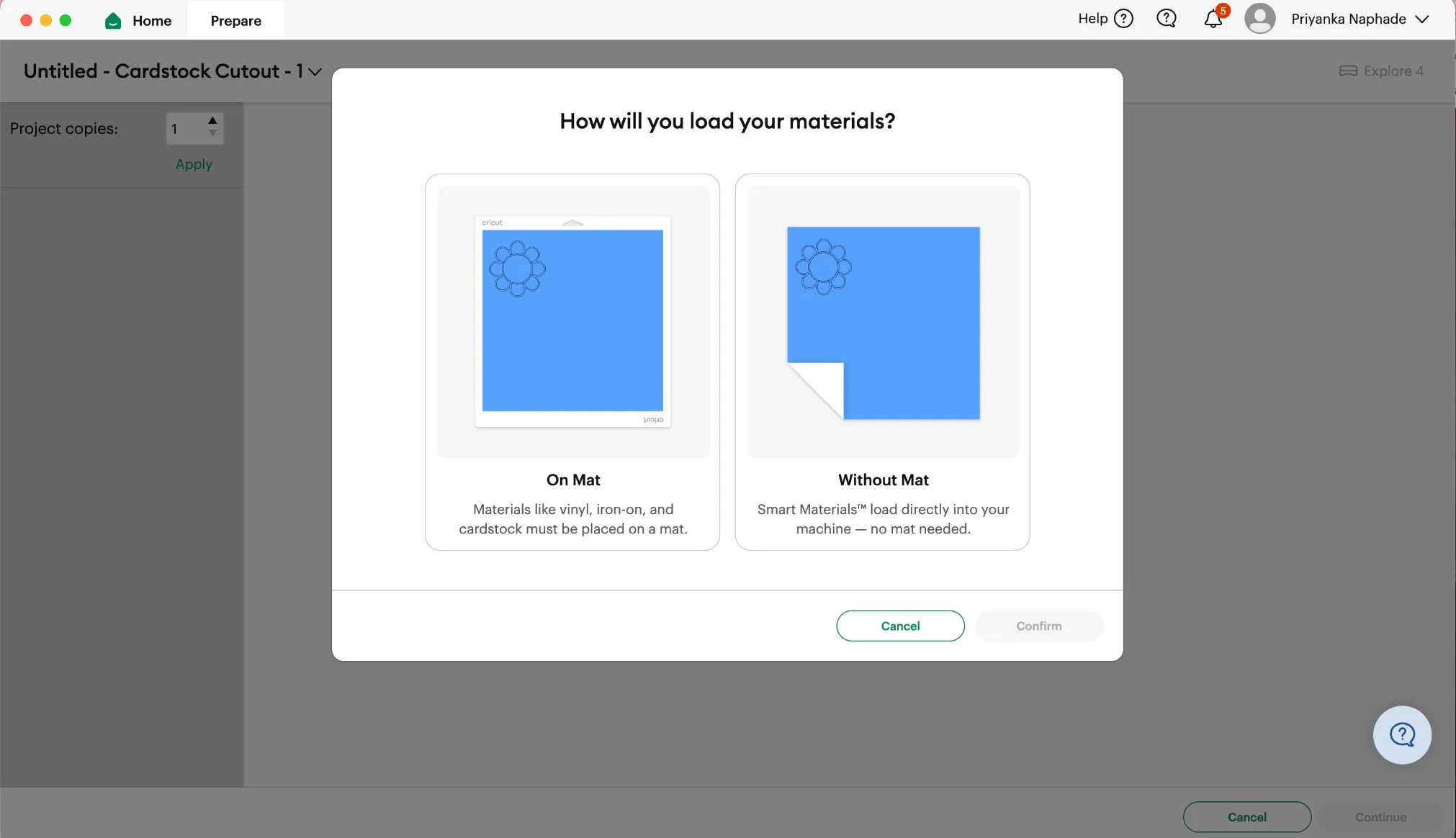
Then confirm the mat size matches the physical mat you’re holding — a 12 in × 12 in mat needs the 12 in × 12 in setting, or your design will be cut in the wrong place.
-
Put your material on the mat. Peel the clear plastic film off the mat and keep it somewhere safe — it goes back on at the end to protect the adhesive. Press the material down firmly, lined up with the same corner Design Space shows it in.
-
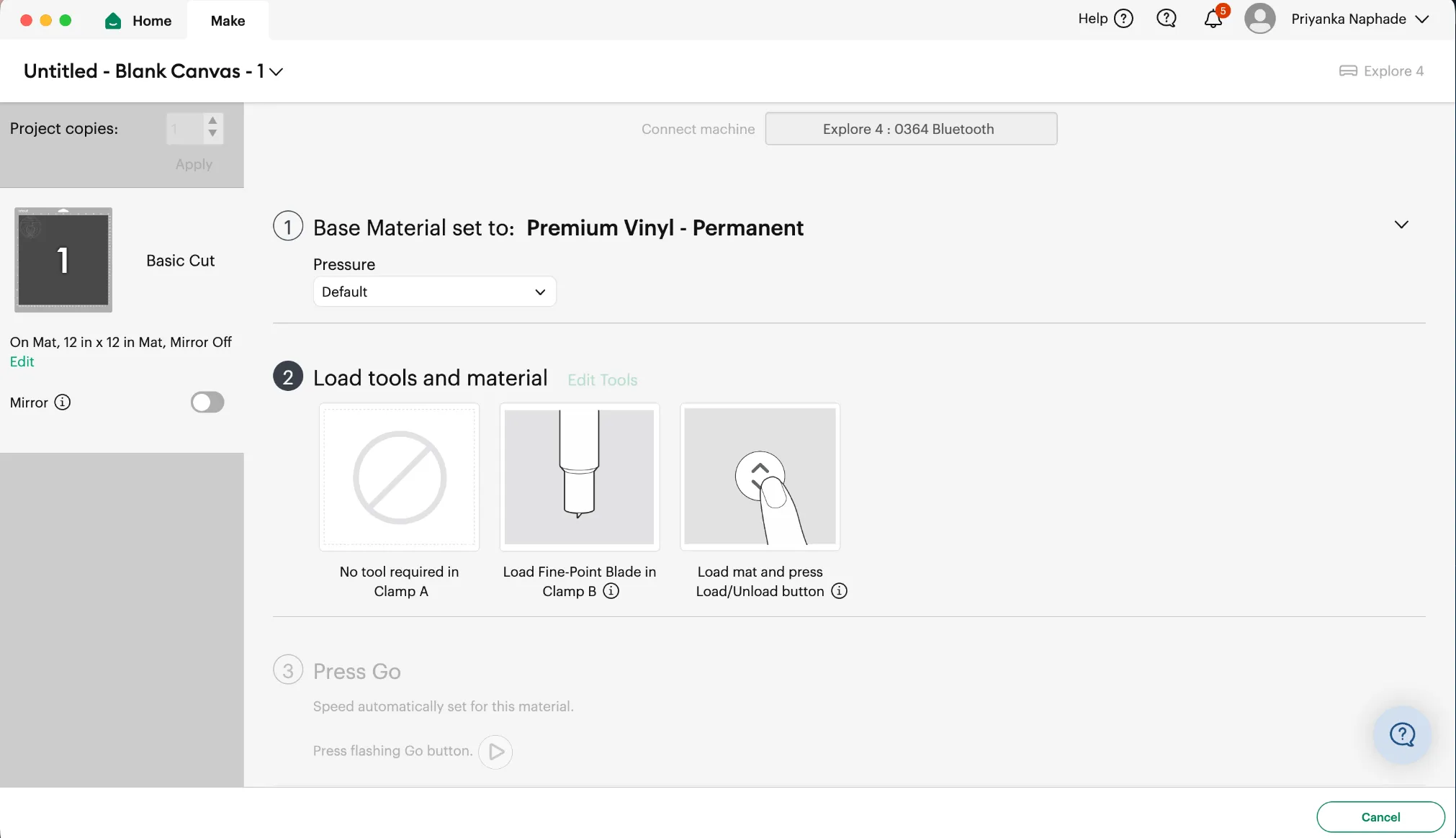
Wait for Design Space to connect to the machine — the top of the screen will name it, like Explore 4 : 0364 Bluetooth. If it doesn’t find the machine, see Common problems.
-
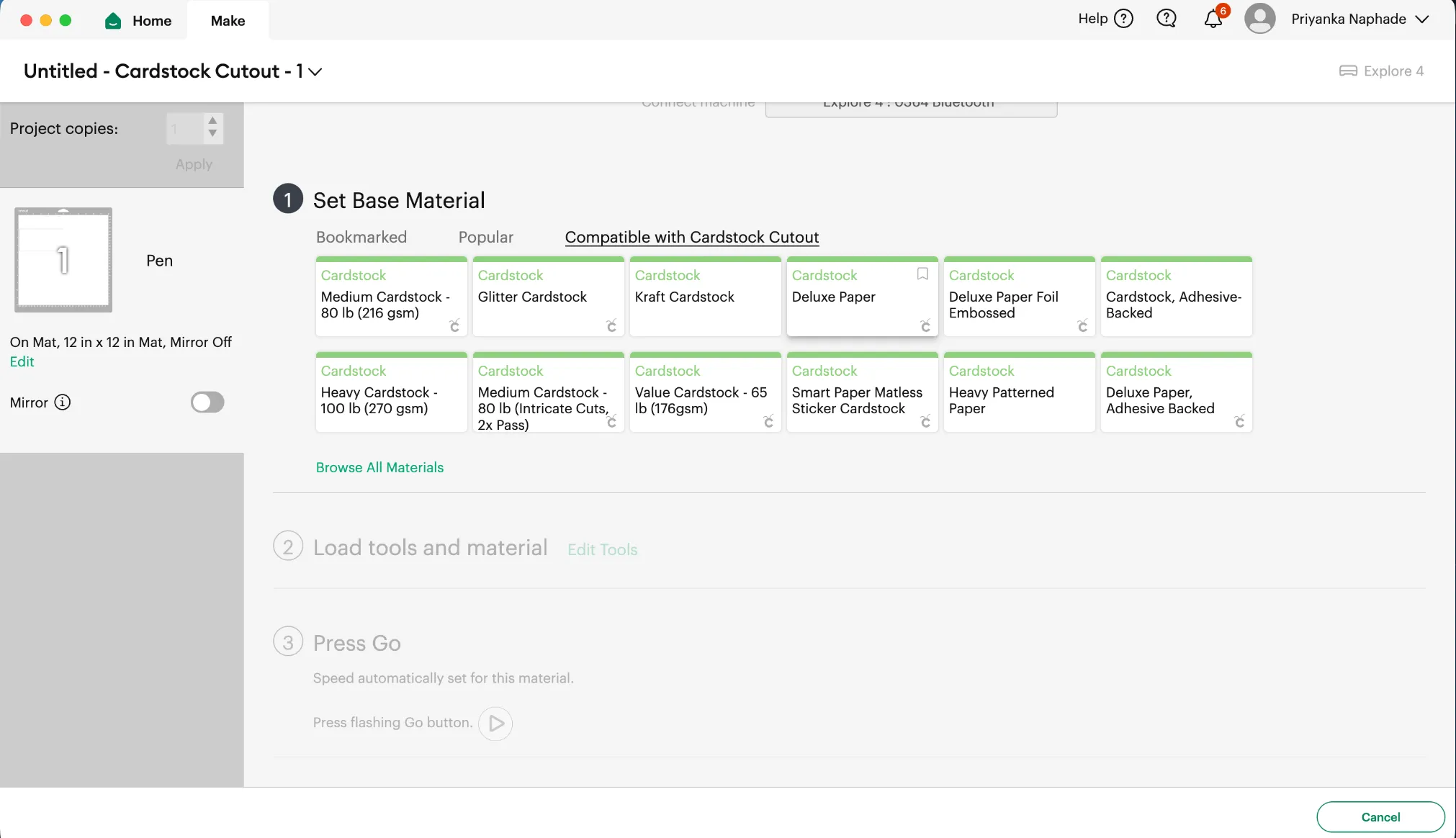
Set your base material. Design Space suggests a few, but the exact material matters — it sets the blade pressure — so click Browse All Materials and search for what you’re actually cutting.
-
Load the tools Design Space asks for. It shows you exactly what goes in each clamp — usually nothing in Clamp A and the fine-point blade in Clamp B.
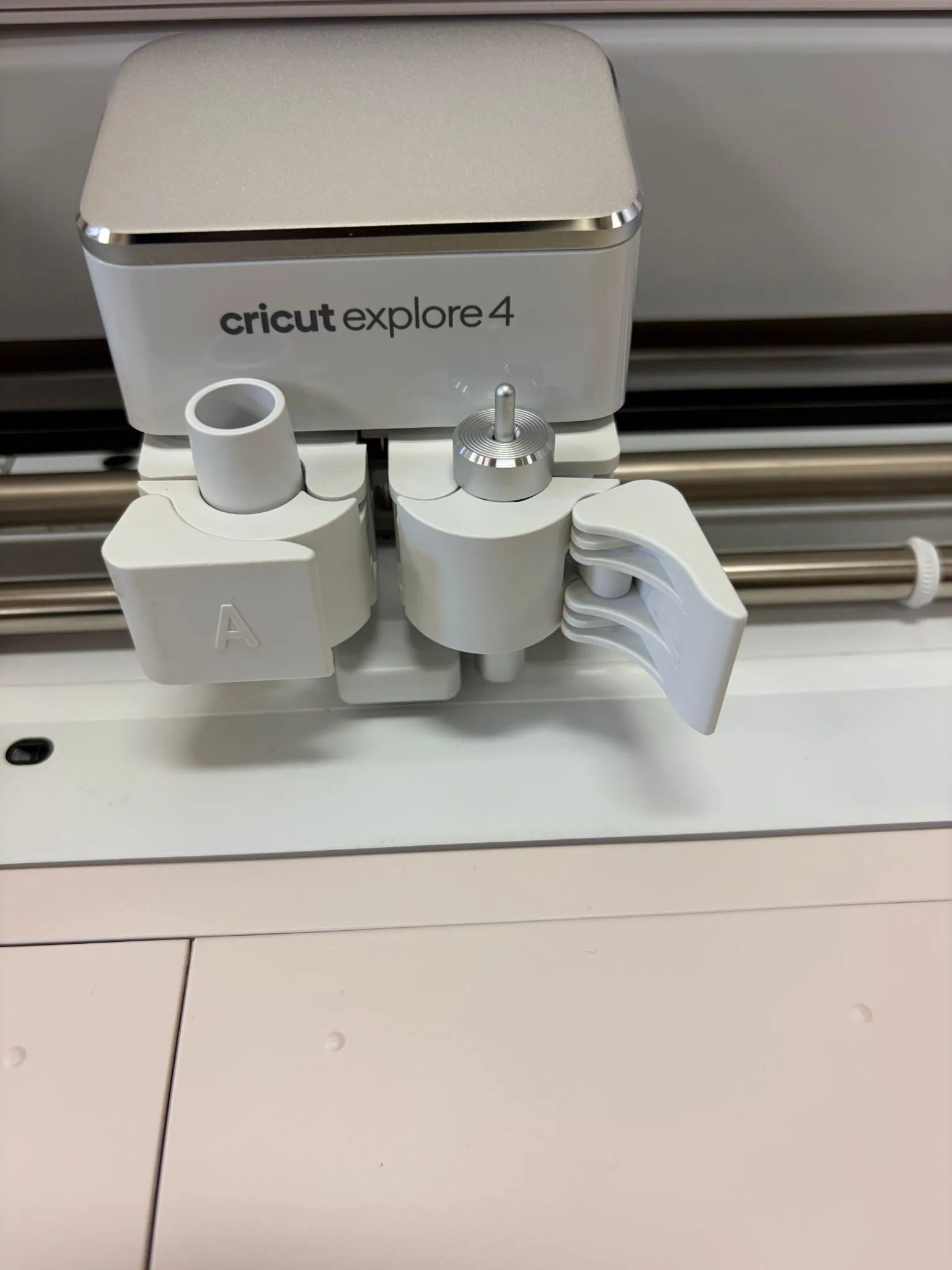
To load a tool, push the clamp’s lever open, drop the housing in so its collar rests on the clamp, and close the lever. If the blade is already in Clamp B, just open and close the clamp without changing anything — that’s enough to satisfy the prompt.
-
Load the mat. Hold it flat against the material guides (11) and push it up against the rollers, then press the flashing Load button (7). Keep holding the mat until the rollers grip it and pull it in — if you let go early it will feed in crooked and the cut will be off.
-
Press the flashing Go button (8) to start the cut. Stay with the machine while it runs.
WARNING
Stop the machine with the Pause button (9) and get a staff member if you hear grinding or knocking, if the blade is dragging or tearing the material instead of cutting it, or if you smell burning. Don’t try to fix a job in progress with your hands in the machine.
-
When the cut finishes, press the Load/Unload button (7) again to release the mat.
-
Peel your material off the mat rather than lifting the mat off the material — bending the material away from the mat keeps paper and vinyl from curling and tearing. Put the clear plastic film back on the mat.
Finishing up
Section titled “Finishing up”- Put the plastic film back on the mat and return the mat, blade, and any lab material to where you found them.
- Clear scraps out of the machine and off the table — small offcuts fall into the cutting area and jam the next person’s job.
- Turn the machine off with the Power button (6) and close the cover.
- Tell a staff member about anything that went wrong, even if you worked around it.
- Take your project and your material with you — the lab has no storage.
Common problems
Section titled “Common problems”Design Space can’t find the machine. Check that the Cricut is powered on and its power button is lit, that Bluetooth is on, and that you’re within 15 feet of it. If it still won’t appear, pair it from your computer’s own Bluetooth settings first, then go back to Design Space. Failing that, unplug the Cricut, plug it back in, and reopen your project.
The cut is in the wrong place, or runs off the edge of the material. Almost always the mat loaded crooked or the mat size in Design Space doesn’t match the physical mat. Unload, re-seat the mat squarely against the material guides, hold it until the rollers take it, and check the mat size in the Make screen.
The blade didn’t cut all the way through. The base material setting is probably wrong — a heavier material needs more pressure. Set the exact material in Browse All Materials rather than a near-enough one. If it’s still short, the blade may be dull or the mat may have lost its tack; ask staff before swapping a blade.
Material tears or lifts while cutting. The material isn’t stuck down well enough, or the mat has lost its grip. Press it down firmly across the whole sheet before loading. If the mat no longer holds paper at all, tell staff — mats are consumable and get replaced.
Comments
Something on this page wrong, missing, or not matching the machine in front of you? Say so here — comments are public and staff read them. Posting needs a free GitHub account, the same one the Edit page flow uses; if you already know the fix, editing the page is the faster route. Comments are readers talking to each other, not checked instructions — for anything urgent or safety-related, ask staff in the lab or on Discord.